วันจันทร์ที่ 4 กุมภาพันธ์ พ.ศ. 2562

Try pythonanywhere.com

     Pythonanywhere
คือ  ออนไลน์ IDE และเป็น Web Hosting ที่ใช้ภาษา Python เป็นหลัก ซึ่งเราสามารถนำเว็บที่เราสร้างขึ้นมาใช้งานออนไลน์บนอินเตอร์เน็ตได้
ซึ่งการใช้งานหลังจากที่ได้สมัครเข้าใช้งานแล้วจะได้หน้าต่างดังภาพด้านล่าง


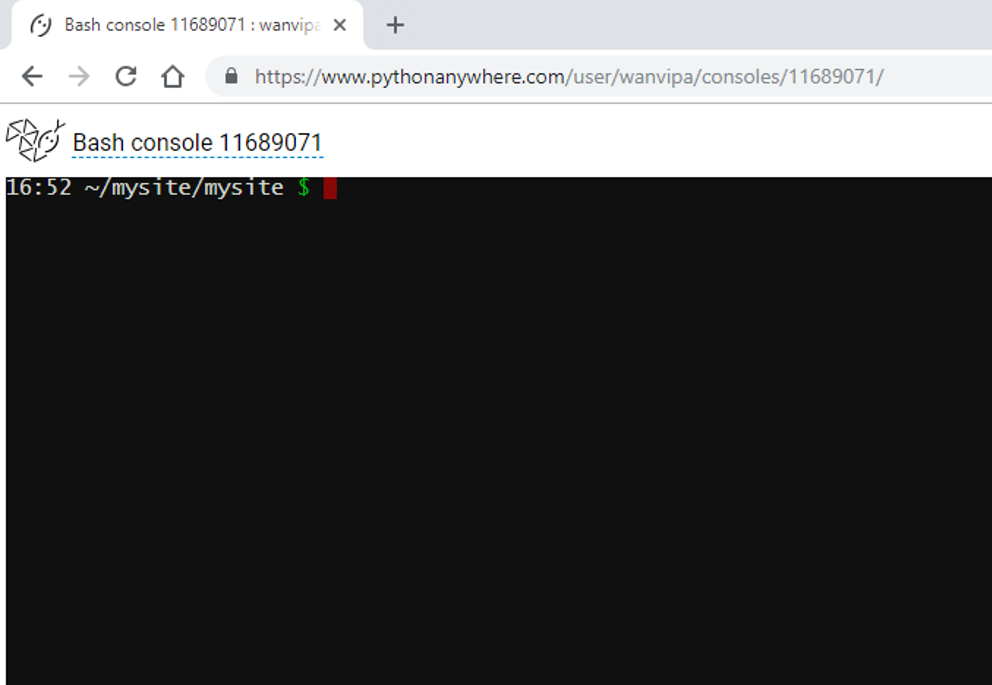
ให้กดเข้าไปที่ New console โดยเลือก Bash จะได้หน้าต่างดังภาพ


จากนั้นพิมพ์คำสั่ง

$ mkvirtualenv myvir --python=python3.6
$ pip install Django
$ python --version                                                                                               
$ django-admin --version                                                                                            
$ git clone https://github.com/Freezzes/pretest.git #clone project จาก GitHub

จากนั้นเปิดไปที่ Web
เลือก add new web app  ( ใช้งานฟรีสร้างได้ 1 app เท่านั้น !!! )
เลือก Framework ที่จะใช้ในการสร้าง web เป็น Django
เลือก version ของ python
ตั้งชื่อโปรเจค เสร็จแล้วจะได้หน้าต่างดังภาพด้านล่าง 


ให้ทำการตั้งค่า Virtualenv โดยการนำ mkvirtualenv myvir --python=python3.6 ข้อความในส่วนที่ถูกไฮไลท์ มาใส่ลงในช่องและกดเครื่องหมายถูก


จากนั้นแก้ไขในส่วน WSGI โดยการเพิ่ม path ของ project ที่ clone มา

      และแก้ไขในไฟล์ settings.py ที่อยู่ในโปรเจคที่ clone มาโดยคัดลอก url มาใส่ในส่วนของ ALLOWED_HOSTS

ALLOWED_HOSTS = [u'wanvipa.pythonanywhere.com'] 

กด save และ กลับไปที่หน้า web และ reload wanvipa.pythonanywhere.com
เมื่อลองเปิดหน้าเว็บพบว่าสามารถใช้งานได้ปกติ


วันเสาร์ที่ 2 กุมภาพันธ์ พ.ศ. 2562

W6 UPDATE

หลังจากที่ได้สร้างคำถามและตัวเลือกไว้ในครั้งที่ผ่านมา คำถามและตัวเลือกสามารถเพิ่มและลบได้โดยการใช้งานผ่านส่วน admin หรือ API ครั้งนี้จะทำการเพิ่มและลบคำถามผ่านหน้าเว็บโดยการสร้างฟังก์ชันขึ้นมาใช้งานโดย

ส่วนการลบคำถาม
1 สร้าง template

<h1>Remove Question</h1>
<form action="{% url 'polls:remove' %}" method="post">
{% csrf_token %}
{% for question in latest_question_list %}
<input type="radio" name="question" value="{{ question.id }}">
<label for="{{ forloop.counter }}">{{ question.question_text }}</label>
<br>
{% endfor %}
<input type="submit" value="remove">
</form>

ให้ลบคำถามโดยการเลือกตัวเลือกแบบ radio ลบได้ครั้งละ 1 คำถาม

2.สร้างฟังก์ชันใน views.py

def removequestion(request):
question = Question.objects.all()
q_select = Question.objects.get(id=request.POST['question'])
q_select.delete()
return HttpResponseRedirect(reverse('polls:index'))

เมื่อมีการเรียกใช้งานฟังก์ชันให้ลบคำถามที่ถูกเลือกและแสดงหน้าลบคำถามเดิม

3. เพิ่ม url ที่เรียกใช้ฟังก์ชัน

from django.urls import path
from . import views
app_name = 'polls'
urlpatterns = [
path('', views.IndexView.as_view(), name='index'),
path('remove/',views.removequestion,name='remove'),
        ]
เมื่อเปิดหน้าแรกจะเรียกใช้ template แสดงหน้าการลบคำถามและมีการเรียกไปที่ url remove และเรียกใช้งานฟังก์ชัน removequestion และ reverse กลับไปที่หน้าลบคำถามหน้าเดิม

หน้าแรกก่อนลบคำถาม
เมื่อเลือกคำถามและ remove จะแสดงหน้าเดิมที่ถูกลบคำถามออกไปแล้ว


ส่วนการเพิ่มคำถาม

1 สร้าง template

<h1>Create Question</h1>
<form action="{% url 'polls:Addquest' %}" method="post">
{% csrf_token %}
<input type="text" name="addq" value="{{ addq.id }}">
<br><br>
<input type="submit" value="Create">
</form>

<h2>Question now : </h2>
{% if latest_question_list %}
<ul>
{% for question in latest_question_list %}
<li><a href="{% url 'polls:detail' question.id %}">{{ question.question_text }}</a></li>
{% endfor %}
</ul>
{% endif %}

ใน template แบ่งเป็น 2 ส่วน คือ ส่วนที่ให้เพิ่มคำถามที่ใช้ input แบบ text และส่วนที่แสดงคำถามที่มีอยู่เพื่อดูการเปลี่ยนแปลงว่าคำถามมีการเพิ่มขึ้นหรือไม่

2. สร้างฟังก์ชันใน views.py

def Add(request):
q = Question(question_text=request.POST['addq'], pub_date=timezone.now())
q.save()
return HttpResponseRedirect(reverse('polls:index'))

ให้เพิ่มคำถามโดยคำถามที่เพิ่มให้รับจาก text ที่พิมพืลงในส่วนของ input และทำการเพิ่มคำถาม

3. เพิ่ม url ที่เรียกใช้ฟังก์ชัน

from django.urls import path
from . import views
app_name = 'polls'
urlpatterns = [
path('', views.IndexView.as_view(), name='index'),
path('add/',views.Add,name='Addquest'),
        ]

เมื่อเปิดหน้าแรกจะเรียกใช้ template แสดงหน้าการเพิ่มคำถามและมีการเรียกไปที่ url Addquest และเรียกใช้งานฟังก์ชัน Add และ reverse กลับไปที่หน้าเพิ่มคำถามหน้าเดิม


พิมพ์คำถามที่ต้องการเพิ่ม

 เมื่อเลือก create จะแสดงหน้าเดิมที่ถูกเพิ่มคำถาม และแสดงคำถามที่ถูกเพิ่มขึ้นมา

วันพฤหัสบดีที่ 31 มกราคม พ.ศ. 2562

HTML Table

HTML Table
     เป็นการสร้างตารางด้วยภาษา html โดยมีองค์ประกอบคือ
<table> กำหนดให้สร้างตาราง
<th>        สร้างหัวข้อ
<tr>        ขึ้นบรรทัดใหม่
<td>       ขึ้นคอลัมน์ใหม่

ตัวอย่างการใช้งาน <table>


<table align="center" border="1" bgcolor="#FFFF99">
  <tr>
    <td>ลำดับที่</td>
    <td>คำถาม</td>
    <td>วันที่สร้าง</td>
    <td align="right">ตัวเลือก</td>
  </tr>
        {% for question in latest_question_list %}
        <tr>
            <td>{{question.id}}</td>
            <td>{{ question.question_text }}</td>
            <td>{{question.pub_date}}</td>
            <td >
            {% for choice in question.choice_set.all %}
            <input type="radio" name="Choice" id="choice{{ forloop.counter }}" value="{{ choice.id }}">
            <label for="choice{{ forloop.counter }}">{{ choice.choice_text }}</label><br>
            {% endfor %}
            </td>
         </tr>
        {% endfor %}

</table>

---------------------------------------------------------------------------------------------------------
ผลลัพธ์ที่ได้


นอกจากนี้เรายังสามารถกำหนดคุณสมบัติต่างๆของตารางได้ดังนี้
align="..." กำหนดตำแหน่งของข้อความภายในตาราง
border="…" กำหนดความเข้มของเส้นขอบตาราง
width="…%" กำหนดความกว้างของตาราง
height="…%" กำหนดความยาวของตาราง
bgcolor="…" กำหนดสีของตาราง
rowspan=" ... " กำหนดการรวมแถว
colspan= " ... " กำหนดการรวมคอลัมน์

Cr : https://developer.mozilla.org/en-US/docs/Web/HTML/Element/table

วันพุธที่ 30 มกราคม พ.ศ. 2562

[Django] Form

Form คือ
- รูปแบบการจัดการเกี่ยวกับการรับค่าและแสดงค่าบนหน้าเว็บด้วยการจัดการร่วมกับการใช้งาน template
- เป็นตัวส่งข้อมูลไปประมวลผลฝั่ง server
- สามารถลดความซับซ้อนของงานได้

Form มีการใช้งานหลักๆ 2 แบบ คือ 
1 HTML Form
2 From class

HTML Form
       สร้างภายใต้ tag  <form>  … </form> เพื่อให้เกิดการทำงานต่างๆ เช่น การรับค่าแล้วส่งคืนไป
สำหรับส่วนที่ใช้ในการติดต่อเพื่อรับค่านั้นจะอนู่ใน tag <input> ซึ่งมีหลายรูปแบบด้วยกัน และต้องระบุ 2 สิ่งใน <input>
- ข้อมูลที่ได้รับมาจากผู้ใช้จะถูกส่งไปที่ไหน
- ใช้วิธีใดในการส่งข้อมูล

วิธีส่งข้อมูล มี 2 วิธี คือ GET และ POST

GET
- ไม่มีการเปลี่ยนแปลงที่ฐานข้อมูล
- ex. การเรียกผลลัพธ์ออกมาแสดง
- suitable for search form

POST
- มีการปลี่ยนแปลงข้อมูลที่ฐานข้อมูล
- ex. การรับผลโหวตเข้าไปเก็บไว้
- suitable for หลายๆรูปแบบ เช่น form ข้อสอบ , form การสั่งซื้อ

วิธีระบุปลายทาง
การระบุปลายทางคือ การระบุว่า HTML From ทีี่สร้างขึ้นจะถูกนำไปใช้ที่ใด โดยระบุในส่วนของ <form>

detail.html >>

<form action="{% url 'polls:vote' question.id %}" method="post">
{% csrf_token %}
{% for choice in question.choice_set.all %}
    <input type="radio" name="choice" id="choice{{ forloop.counter }}" value="{{ choice.id }}">
    <label for="choice{{ forloop.counter }}">{{ choice.choice_text }}</label><br>
{% endfor %}
<input type="submit" value="Vote">
</form>

หมายถึง เมื่อมีการเรียกใช้ฟังก์ชันที่ใช้งาน template detail.html จะทำการสร้าง from ตามที่กำหนด
และ ส่งค่าที่ได้จาก form ไปใช้งานที่ url 'polls:vote' question.id และใช้งานฟังก์ชันตามที่ระบุไว้ใน urls.py


Form class


     มีรูปแบบและโครงสร้างเหมือน models แต่ field ของ models จะ map ไปที่ field ของฐานข้อมูล 
ส่วน field ของ form จะ map ไปที่ <input> ของ HTML

froms.py >>

from django import forms
class NameForm(forms.Form):
your_name = forms.CharField(label='Your name', max_length=100)

การใช้งาน from Django จะนำ form ที่เราสร้างไปแปลงเป็น html เอง ดังนี้

<label for="your_name">Your name: </label>
<input id="your_name" type="text" name="your_name" maxlength="100" required>


วันอาทิตย์ที่ 27 มกราคม พ.ศ. 2562

[Django] input type

input แบ่งเป้น 4 กลุ่ม ได้แก่
- Text
- checkboxes and selectors
- uploading files
- handling of multi-valued input.

Text จะมีการรับข้อความโดยการใช้ ช่องสี่เหลี่ยมเปล่าๆ ให้ผู้ใช้สามารถพิมพ์ลงไปในช่องได้ โดยแต่ละแบบมีเงื่อนไขที่แตกต่างกันออกไป เช่น

TextInput
Renders as: <input type="text" ...>
รับข้อความเป้นตัวหนังสือแบบ 1 บรรทัด สามารถกำหนดความยาวของข้อมูลที่รับได้ 

NumberInput
Renders as: <input type="number" ...>
รับข้อความที่เป็นตัวเลขเท่านั้น

EmailInput
Renders as: <input type="email" ...>
ในข้อความต้องประกอบด้วย @ ที่แสดงถึงการเป็น email

URLInput
Renders as: <input type="url" ...>
เป็นประเภท url เท่านั้น

PasswordInput
Renders as: <input type="password" ...>
เมื่อกรอกข้อความลงไปจะถูกแทนที่ด้วยสัญลักษณ์แทนข้อความ

checkboxes and selectors มีลักษณะเป็นการแสดงตัวเลือกให้เลือก โดย checkbox จะแสดงเป็นช่องสี่เหลี่ยมและสามารถเลือกได้หลายตัวเลือก ส่วน selector นั้น จะเป็นประเภท radio ที่สามารถเลือกได้เพียงตัวเลือกเดียว

การใช้แบบ chechbox


การใช้แบบ radio

uploading files เป็นการเลือกไฟล์ประเภทต่างๆ เพื่ออัพเดทขึ้นเว็บไซต์ เช่น ไฟล์เอกสาร ไฟล์ภาพ หรือไฟล์มัลติมีเดียต่างๆ เป็นต้น


การใช้งาน git

1 Download git ตามระบบปฏิบัติการที่ใช้งานจากเว็บไซต์
https://git-scm.com/downloads

2 ตั้งค่า Git Configurations โดย
     git config --global user.name " ตั้งชื่อ "
     git config --global user.email " ระบุ e-mail "
     git config --global --list  #จะแสดงชื่อและ e-mail ที่ตั้งค่าไว้

3.ใช้งานได้ 2 รูปแบบคือ
     1 สร้าง repository ใน GitHub และ ใช้การ git clone ตามด้วยลิ้งก์ของ repository ที่สร้างไว้ เพื่อทำการ clone ลงมาใช้งาน
     2 สร้าง repository ด้วยการใช้ git init หลังจากนั้นจึงใช้ git remote เพื่อทำงานเชื่อมต่อกับ repository ที่สร้างบน GitHub

ตัวอย่าง การสร้างผ่านการใช้ git init

>> สร้าง folder ชื่อ one

>> cd one                                  #เข้าไปใน folder

>> git init                                  # สร้าง repository

>> นำไฟล์ที่ต้องการอัพใส่ลงในโฟลเดอร์

>> git status                             # ตรวจสอบสถานะของโฟลเดอร์


-------------------------------------
On branch master

No commits yet

Untracked files:
  (use "git add <file>..." to include in what will be committed)

        mysite/

nothing added to commit but untracked files present (use "git add" to track)
--------------------------------------
แสดงว่า เรานำ mysite มาใส่ลงในโฟลเดอร์แล้ว แต่ยังไม่ได้ทำการใดๆ ให้ use "git add" to track


>> git add mysite                                                    # add mysite

>> git status                                                            # ตรวจสอบสถานะอีกครั้ง

-----------------------------------------------------
On branch master

No commits yet

Changes to be committed:
  (use "git rm --cached <file>..." to unstage)

        new file:   mysite/.vscode/settings.json
        new file:   mysite/db.sqlite3
------------------------------------------------------
ไฟล์ตามรายชื่อถูกเพิ่มแล้ว


>> git commit -m"add"                                           #ทำการ commit และ comment สิ่งที่ commit
-------------------------------------------------------
[master (root-commit) 77c1735] add
 31 files changed, 345 insertions(+)
 create mode 100644 mysite/.vscode/settings.json
 create mode 100644 mysite/db.sqlite3
 -------------------------------------------------------


>> git log                                     # เรียกเพื่อดูรหัสการ commit แต่ละครั้ง โดยใช้ 7 ตัวแรกในการอ้างอิง
-------------------------------------------------------
commit 77c173511046578a75194c6a0f96cb6fe7a8f1c4 (HEAD -> master)
Author: wanvipa <wanvipa1906@gmail.com>
Date:   Thu Jan 24 11:08:47 2019 +0700

    add
-------------------------------------------------------


>> git remote add origin https://github.com/Freezzes/one.git   

#ตั้งค่าการ commit ให้ไฟล์ไปแสดงในโฟลเดอร์ตามลิ้งก์ https://github.com/Freezzes/one.git

>> git remote -v                                                 # เรียกดูความสามารถในการ remote

-------------------------------------------------------
origin  https://github.com/Freezzes/one.git (fetch)
origin  https://github.com/Freezzes/one.git (push)
fetch คือ remote address ที่จะให้ไปดึงจากฝั่ง remote มายังฝั่ง local
push คือ remote address ที่จะให้เอาจากฝั่ง local ไปรวมที่ฝั่ง remote ที่ไหน
-------------------------------------------------------


>> git push origin master                                    # push ไฟล์ขึ้น GitHub
-------------------------------------------------------
Enumerating objects: 41, done.
Counting objects: 100% (41/41), done.
Delta compression using up to 4 threads
Compressing objects: 100% (37/37), done.
Writing objects: 100% (41/41), 18.42 KiB | 419.00 KiB/s, done.
Total 41 (delta 2), reused 0 (delta 0)
remote: Resolving deltas: 100% (2/2), done.      #แสดงว่าการ push สำเร็จแล้ว
To https://github.com/Freezzes/one.git
 * [new branch]      master -> master
-------------------------------------------------------


Cr :
https://git-scm.com/downloads

วันอาทิตย์ที่ 20 มกราคม พ.ศ. 2562

W4 Update

สิ่งที่ได้ศึกษาเรียนรู้

     1.ได้ศึกษาเกี่ยวกับการทำเว็บไซต์ด้วยการใช้ Django ที่มีการอำนวยความสะดวกในการสร้างเว็บหลากหลายอย่าง เช่น ส่วนการจัดการของแอดมิน , การสร้างและจัดการฐานข้อมูลด้วยการสั่งงานผ่าน command เป็นต้น

      2.การสร้างโปรเจคของ Django สามารถสร้างผ่าน command ด้วยการใช้งานคำสั่ง

django-admin startproject mysite   >> mysite คือชื่อโปรเจคที่เราต้องการสร้าง

โปรเจคที่สร้างขึ้นมาภายในจะประกอบไปด้วยโฟลเดอร์ชื่อเดียวกันกับโปรเจคและไฟล์ manage.py ซึ่งเป็นไฟล์ที่ใช้ในการสั่งให้โปรเจคทำงานต่างๆ โดยปกติแล้วจะไม่มีการแก้ไขไฟล์นี้ แต่จะมีการเรียกใช้งานเสมอๆ เช่น การสร้าง app , การ run server 

     3.การสร้าง app สามารถสร้างได้มากเท่าที่เราต้องการในโปรเจคของเรา โดยการ เปิดโปรเจคใน command และใช้คำสั่ง 
py manage.py startapp polls           >> polls คือชื่อของแอพลิเคชันที่อยู่ในโปรเจคที่เราทำการสร้างขึ้น

ภายในโปรเจคจะมีไฟล์ที่สร้างขึ้นมาพร้อมกันเพื่อให้เรานำไปใช้งานต่างๆ ต่อไป เช่น

views.py
     สำหรับสร้างฟังก์ชันการทำงานของเว็บ เช่น ฟังก์ชันให้แสดงผล ฟังก์ชันดึงค่าจากฐานข้อมูล ฟังก์ชันการคำนวณค่าต่างๆ โดยที่การทำงานจะทำตามเงื่อนไขแรกที่สำคัญคือ มีการ request เข้ามาเพื่อทำฟังก์ชันที่กำหนด เช่น ให้แสดงคำว่า  Hello World เป็นแบบหัวเรื่อง

def index(request):
     return HttpResponse("<h1>Hello World</h1>")

models.py 
     เป็นส่วนของการสร้างฐานข้อมูลด้วยการระบุองค์ประกอบต่างๆ ของฐานข้อมูล เช่น ชื่อฐานข้อมูล ชื่อ field ที่เก็บข้อมูลต่างๆ ประเภทของแต่ละ field และ การเชื่อมโยงของแต่ละ feild เป็นต้น ซึ่งแต่ละ feild จะต้องสร้างขึ้นใน class นั้นๆ เช่น ต้องการสร้างฐานข้อมูลเก็บคำถามที่เป็นตัวอักษร และให้ feild ชื่อว่า Question ให้เราทำการสร้าง class Question(models.Model) และระบุรายละเอียดของรูปแบบข้อมูลที่ต้องการลงใน class
ตัวอย่างการสร้างฐานข้อมูลของตัวเลือก โดยให้ตัวเลือกที่สร้างเป็นของคำถามแต่ละคำถามโดยมี field ชื่อ question เก็บคำถามที่ทำการเชื่อมโยงมาจากฐานข้อมูลคำถาม และสร้าง choice ของคำถามต่างๆ นั้นเป็น field ที่ชื่อว่า choice_text และมีประเภทเป็น CharField และเก็บผลคะแนนการโหวตเป็น IntegerField

class Choice(models.Model):
    question = models.ForeignKey(Question, on_delete=models.CASCADE)
    choice_text = models.CharField(max_length=200)
    votes = models.IntegerField(default=0)

    def __str__(self):
        return self.choice_text

admin.py
    เป็นการระบุคำสั่งให้ส่วน แอดมินมีความสามารถอะไรข้าง เช่น

admin.site.register(Question)        >> ให้แอดมินสามารถจัดการคำถามได้

urls.py
     เป็นส่วนที่ทำการตรวจสอบระหว่าง url ที่ user ทำการพิมพ์ลงในช่องและส่ง request เข้ามา ว่าตรงกันกับ url ที่ตั้งไว้หรือไม่ หากตรงกันก็ให้ทำงานตามฟังก์ชันนั้นๆที่ได้ผูกติดอยู่กับลิ้งก์นั้น 

urlpatterns = [
    path('', views.index, name='index'),                                               >>ทำฟังก์ชัน views.index
    path('<int:question_id>/', views.detail, name='detail'),                 >>ทำฟังก์ชัน views.detail
    path('<int:question_id>/results/', views.results, name='results'),  >>ทำฟังก์ชัน views.results
    path('<int:question_id>/vote/', views.vote, name='vote'),             >>ทำฟังก์ชัน views.vote
    ]
 
     4.ทดลองสร้าง app ตาม tutorial ของเว็บไซต์ Django ซึ่งเป็น app ที่ใช้ในการสร้างโพลสำรวจและลงคะแนนโหวต

     5. ทดลองสร้าง template


ปัญหา / วิธีการแก้ไข
     1.พิมพ์ชื่อไม่ตรงกัน ทำให้เกิด error เมื่อทดลอง runserver

วิธีการแก้ไข >> อ่าน error ที่และดูไล่ลำดับจากบรรทัดที่เกิด error ตามการทำงาน เช่น
ไม่รู้จักฟังก์ชัน result ในไฟล์ views.py ก็จะเริ่มดูที่ไฟล์ views.py ซึ่งเรียก template มาใช้ และมีการเรียกฟังก์ชันที่ไฟล์ urls.py ก็จะไปดูที่ไฟล์ template และ urls.py ตามลำดับ

     2.ลืม import

วิธีการแก้ไข >> import สิ่งที่ลืมเข้ามาใช้งาน เช่น
การใช้งาน get_object_or_404( ) ต้องมีการ import ด้วย from django.shortcuts import get_object_or_404

     3.ทำข้ามขั้นตอน tutorial ทำให้เกิด error

วิธีการแก้ไข >> ย้อนกลับไปอ่าน tutorial ตรงจุดที่เกิด error ทำความเข้าใจใหม่ และ แก้ไข code


----------------------------------------------------
Cr :
https://docs.djangoproject.com/en/2.1/intro/tutorial01/
https://docs.djangoproject.com/en/2.1/intro/tutorial02/
https://docs.djangoproject.com/en/2.1/intro/tutorial03/
https://docs.djangoproject.com/en/2.1/intro/tutorial04/
https://docs.djangoproject.com/en/2.1/topics/templates/
http://www.tangowithdjango.com/book/chapters/models_templates.html
https://www.youtube.com/watch?v=l2YDT3fVv9k
https://medium.com/@9coding/